Imagine waking up and saying one sentence to start your day, while your curtains glide open on their own.
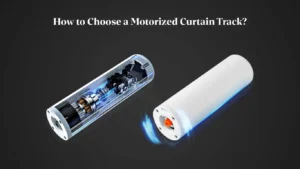
Connecting a smart curtain motor to Alexa makes that possible. With the KYOK WiFi curtain motor, the Smart Life app and any Amazon Echo speaker, you can build voice-controlled smart home curtains in about five minutes. This guide walks you through every step, from pairing the motor to your first voice command.
What you’ll need:
- A KYOK smart curtain motor, installed and powered on
- An Amazon Echo or other Alexa-enabled device, connected to WiFi
- A smartphone with Bluetooth
- A 2.4GHz WiFi network (5GHz is not supported)
Step 1: Download the Apps and Check Your Network
- Download the Amazon Alexa app and the Smart Life app from the App Store or Google Play, and sign in to both.
- Turn on Bluetooth on your phone.
- Connect your phone to your home 2.4GHz WiFi. If your router broadcasts one combined name for 2.4GHz and 5GHz, temporarily switch off 5GHz in the router settings or use a separate 2.4GHz network name.
Step 2: Add the Curtain Motor to the Smart Life App
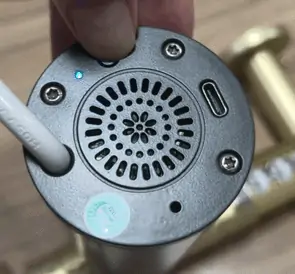
Put the motor into pairing mode. Find the SET button on the bottom of the KYOK motor. Press and hold it for 5–10 seconds until the blue LED starts flashing rapidly.
Add the device in Smart Life.
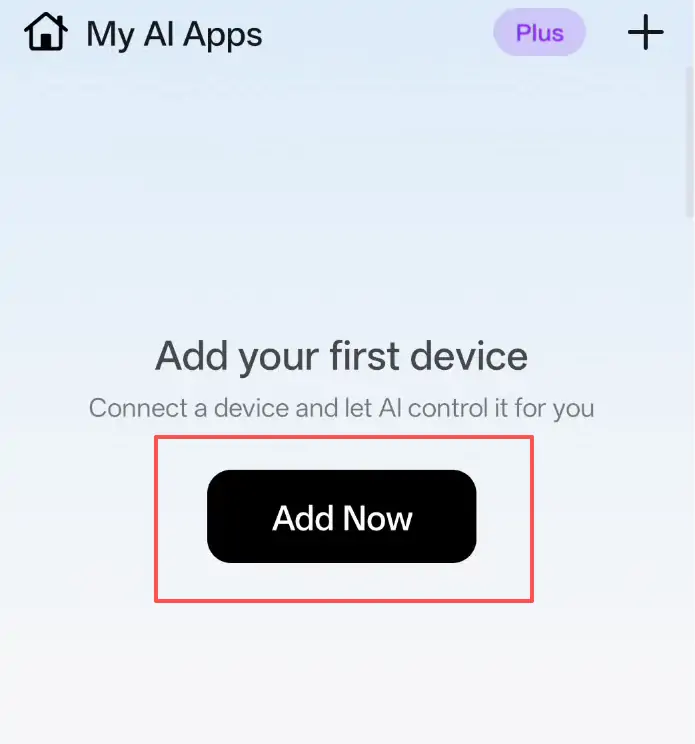
- Open Smart Life and tap the “+” icon in the top-right corner.
- Select Add Device.
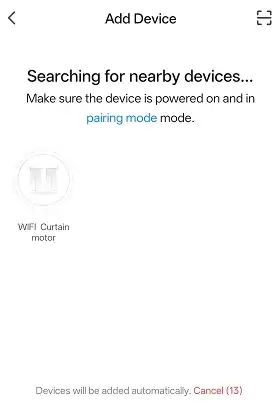
- The app should automatically detect a device named “Wi-Fi curtain motor”. Tap Connect.
- Enter your 2.4GHz WiFi password and wait for pairing to finish.
Pro tip: Rename the motor to something simple, like “Living Room Curtain”, and assign it to a room. Alexa will use this exact name for voice commands.
Step 3: Link Smart Life to Amazon Alexa
Once the motor appears in Smart Life, connect it to Alexa:
- Open the Alexa app, tap More, then Skills & Games.
- Search for “Smart Life” and tap Enable to Use.
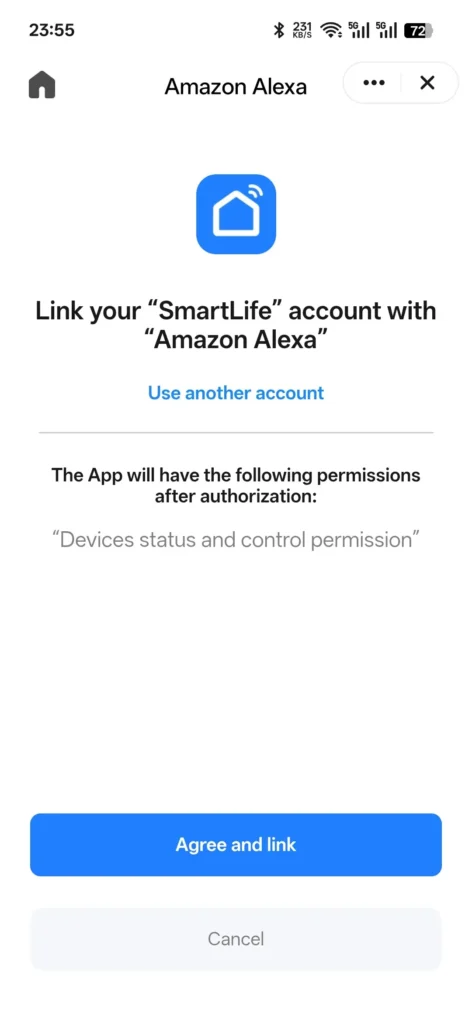
- Sign in with your Smart Life account and tap Authorize.
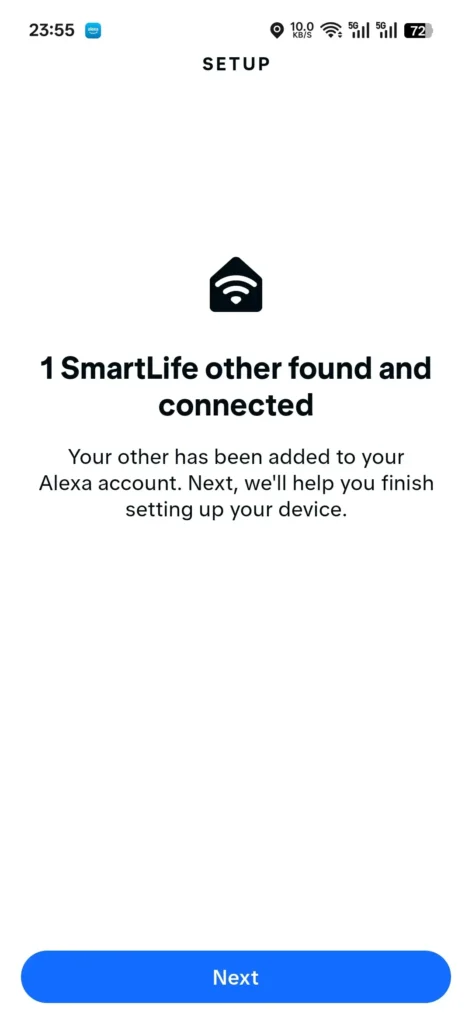
- When Alexa asks to discover devices, tap Discover Devices. Alexa will find your curtain motor in about 45 seconds.
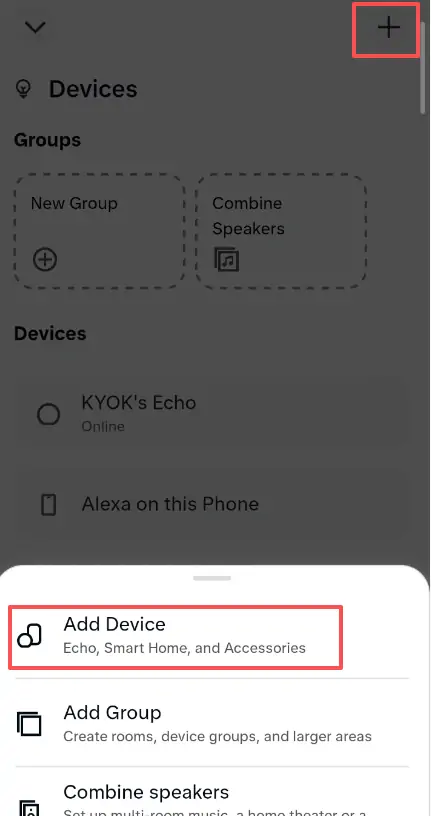
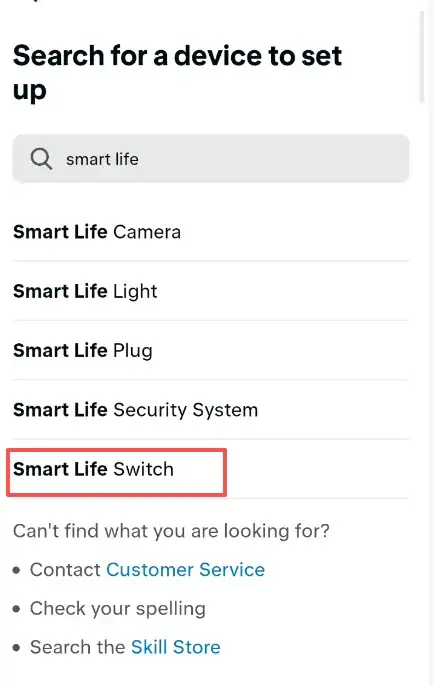
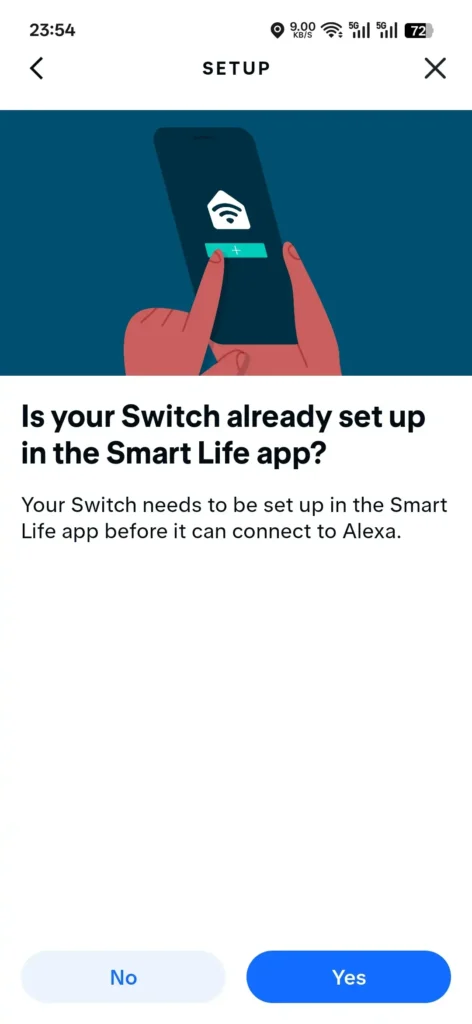
(Alternative route: Devices → “+” → Add Device → Switch / All Devices → choose Smart Life Switch from the brand list.)
Step 4: Control Your Curtains with Your Voice
Try these commands, using the name you gave the motor:
- 💬 “Alexa, open Living Room Curtain.”
- 💬 “Alexa, close Living Room Curtain.”
- 💬 “Alexa, set Living Room Curtain to 50 percent.”
You can also group several curtains into a Group in the Alexa app and control them all at once, for example “Alexa, open Bedroom Curtains.”
Bonus: Automate with Alexa Routines. Make your motorized curtains run on a schedule. In the Alexa app, go to More → Routines → “+” and set:
- Good morning: open the curtains at 7:00 AM or when your alarm goes off
- Movie night: close the curtains when you say “Alexa, movie time”
- Goodnight: close all curtains at sunset
Troubleshooting & FAQ
Why can’t Smart Life find my curtain motor? Check two things: (1) Bluetooth is on, and (2) your phone is on a 2.4GHz WiFi band. Mixed-band routers are the most common cause of failed pairing.
The blue LED isn’t flashing. What should I do? Make sure the motor is powered properly, then press and hold the SET button firmly for a full 10 seconds until the light flashes.
Alexa says “I couldn’t find a device named…”. How do I fix it? Say the name exactly as it appears in the Alexa app, or run “Alexa, discover my devices”. You can also rename the device in the Alexa app to something easier to say.
Does the KYOK curtain motor work with Google Home? Yes, the same Smart Life account can also be linked to Google Assistant.
Can I still use the curtains manually? Yes. A light pull on the curtain triggers the motor to open or close it automatically. (Confirm this feature applies to your model.)
Ready to Upgrade Your Home?
Explore the KYOK Smart Curtain Motor collection and bring voice-controlled convenience to every room. Questions about setup? Contact our support team, and our engineers will help you get connected.
contact: info@fskyok.com